
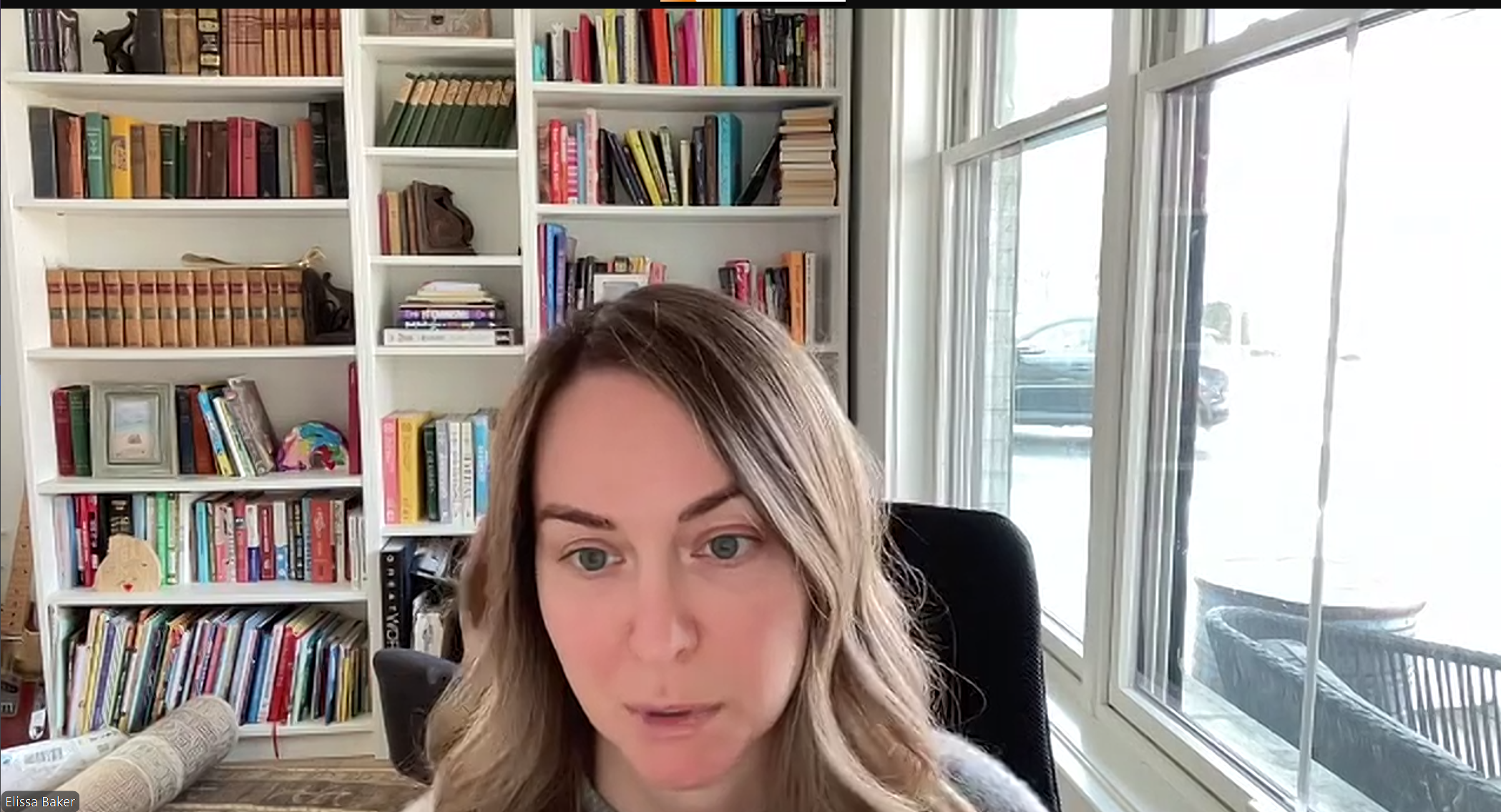
Webcam users don’t preview their image and sound before going live.
Webcam users do not preview their image and sound before going live.
Zoom or Teams is not an audio conference call. You are on TV.
Why the Preview Matters
Viewers judge you in the first seconds. Picture, sound, and eye contact shape trust.
A one-minute check prevents echoes, dark faces, and awkward framing that pull attention away from your message.
The 60-second Preflight
- Open the app’s preview screen before joining.
- Select the correct mic and speaker. Say a complete sentence and watch the meter peak near the yellow range.
- Verify the camera feed. Center your eyes at or slightly above lens height.
- Use the Rule of Thirds. Visualize two horizontal lines that create three areas.
- Place your eyes on the top line.
- Frame head and shoulders with a bit of space above your hairline.
- Face a light source. Avoid bright windows behind you.
- Check the background for movement or glare that might be distracting.
- Mute system notifications.
- Close apps that might take the mic or camera.
- Confirm your display name and title if needed.
- Join two minutes early so others see you ready.
Audio: Fast Fixes
- Mic choice: Use a dedicated USB mic or a headset. Laptop mics hear the room.
- Distance: Keep the mic 6–10 inches from your mouth. Aim slightly off-axis to reduce plosives.
- Room tone: Soft furnishings reduce echo.
- Processing: For meetings, enable the platform’s noise suppression. For recordings, prefer clean audio with platform effects off.
- Levels: Avoid red clipping.
If your voice sounds thin, you are too far. If boomy, you are too close.
Picture: Fast Fixes
- Eye line: Raise the camera to eye level. Look at the lens when delivering key points.
- Framing: Head and shoulders. Keep text and graphics out of the outer 10–15 percent of the frame to protect titles and overlays.
- Lighting: Key light in front. Add fill to soften shadows. Turn off overhead glare.
- Background: Simple and still. Remove readable posters or small text that competes with your face.
Platform Specifics
Zoom Pre-Join
- On the join screen, click the up-arrow beside the mic. Choose your mic and speaker. Test Speaker and Microphone.
- Click the up-arrow beside the camera. Choose the correct camera. Use “Adjust for low light” only if needed.
- Use “Touch up my appearance” lightly or leave off for professional work.
Microsoft Teams Pre-Join
- On the pre-join panel, select device settings. Choose a mic, a speaker, and a camera.
- Use Noise suppression on Auto for meetings in noisy spaces.
- Use Green screen only with a real green backdrop and even light.
Host Prompts That Help Your Audience
Please confirm your mic and camera in the device menu. If your background is bright, face a light source. If we cannot hear you clearly, use the chat, and we will troubleshoot.
Common Problems and Quick Answers
- Echo or feedback: Someone is on speakers. Ask them to switch to a headset or mute speakers.
- Dark face with bright window: Rotate the desk so the window lights your face or close the shade and add a lamp.
- Soft or distant voice: Confirm the correct mic in device settings. Move the mic closer.
- Lip-sync off: Close and reopen the app. If you route audio through third-party software, disable it for the call.
- Frozen or choppy video: Turn off HD, stop background effects, and close bandwidth-heavy apps.
Call to Action
Adopt the 60-second preflight before every meeting. Your presence will feel like broadcast TV. Your message will land.
For a complementary evaluation of your online image and sound, select a meeting time with my schedule: https://calendly.com/presentationcoachray/30min
 #PresentationCoachRay