Why Use A Teleprompter Online?

Featured

Engage face to face on Zoom or Teams

In my book “On The Job Speech Training,” I have a chapter dedicated to using a teleprompter to read a script or notes while maintaining eye contact with the hidden camera behind the text.

Since COVID-19 forced everyone online for work and family gatherings, we have struggled with the challenges posed by the “webcam.” This small window to the outside world is often placed above the laptop screen or used as a separate device connected to a video monitor.

It is not a natural human tendency to speak to an inanimate object, a small lens, when communicating with one person or hundreds during a Zoom, Teams, or Meet event. While it feels more instinctive to glance at video images of those participating online, this does not create the perception of direct engagement. To the audience, it may seem as if you are looking anywhere but at them.

Although it can be challenging to simulate eye contact with a webcam, presentation coach Ray will guide you to success. My own experience began in TV news, where I had to sit in a studio and stare at a camera lens. Initially, it was difficult, but over time, I learned how to connect with my audience; a million people felt as if I was looking directly at them.

Incorporating a teleprompter, which is essentially a camera concealed behind one-way glass, is the easiest way to achieve genuine eye contact. Even if you are not reading text, you will be engaging with those who appreciate your effort to connect.

Creating a mirror image or a separate window on your Mac or PC and mirroring it to the teleprompter device allows you to achieve the eye contact we all desire.

Selecting the best teleprompter Software.

Here are cross-platform teleprompter apps for PC and Mac that support a transparent background, allowing you to see images or applications behind the teleprompter text. Below are some of the best options based on available information, focusing on cross-platform compatibility and transparency features:

1. Transparent Teleprompter https://pcmacstore.com/en/app/1560136049/transparent-teleprompter

  • Platforms: Windows (10, 11, 7), macOS (10.7 or later)
  • Transparency: Offers a translucent overlay for full-screen apps, with adjustable transparency from 1% to 40%. This allows you to see and interact with applications like video recording software or Zoom behind the teleprompter.
  • Features:
    • Adjustable window size, font size, color, shadow color, and text alignment.
    • Scrolling control (start, stop, pause, speed) with a slider for text position.
    • Supports global hotkeys and physical foot control pedals for hands-free operation.
    • Text can be edited on the fly with customizable default styles.
  • Price: $14.99 (one-time purchase, no subscription).
  • Source: Available on the Mac App Store and pcmacstore.com.
  • Note: Specifically designed for remote work situations like Zoom meetings or virtual interviews, making it ideal for seeing background content.

2. Virtual Teleprompterhttps://www.vtpapps.com/

  • Platforms: Windows (8, 10, 11), macOS
  • Transparency: Features an adjustable transparency overlay that lets you see applications or video feeds behind the teleprompter while reading your script.
  • Features:
    • Customizable font size, colors, and scrolling speed.
    • Compatible with all major meeting platforms (Zoom, Webex, Microsoft Teams, Google Meet).
    • Multilingual support, including right-to-left languages like Arabic and Hebrew.
    • Does not require internet connectivity, as data is stored locally for privacy.
  • Price: Free version (limited to 1000 characters); Pro version requires a one-time fee (price not specified in sources).
  • Source: Available at vtpapps.com.
  • Note: Optimized for low resource usage compared to browser-based teleprompters, ensuring smooth performance during recordings or meetings.

3. Teleprompter Prohttps://teleprompterpro.com/

  • Platforms: iOS, iPad, macOS (with partial Windows compatibility via browser-based solutions or third-party apps like Duet Display for extended displays).
  • Transparency: On macOS, it includes a Transparent Window Mode (version 3.8.10 or later) that makes the background transparent, allowing you to view applications like video recording software, presentations, or live streams behind the teleprompter. This feature is not available natively on Windows, but can be approximated with external display setups.
  • Features:
    • Import PDF, TXT, and RTF files.
    • Mirroring and text reversal for professional teleprompter rigs.
    • Remote control via keyboard, handheld remote, or gaming controller.
    • Syncs scripts across devices (optional cloud sync).
    • Supports external displays and integration with Elgato Prompter.
  • Price: Free version available; Premium version costs £19.99/year for full features.
  • Source: Available on the App Store and teleprompterpro.com.
  • Note: While primarily designed for Apple ecosystems, it can be used on Windows with limitations (e.g., using a browser-based interface or tablet as an extended display). Transparency is macOS-specific.

4. Teleprompter.comhttps://www.teleprompter.com/

  • Platforms: Web-based (works on Windows, macOS, iOS, Android), with native apps for macOS, iOS, and Android.
  • Transparency: The macOS app supports adjustable window transparency, so you can read scripts while seeing video calls or other applications in the background. Transparency on Windows may depend on browser capabilities or third-party tools.
  • Features:
    • Cloud-synced scripts for cross-device access.
    • Customizable reading speed and script editing on the fly.
    • Supports 4K video recording on mobile devices.
    • AI script generation and hashtag generators for social media.
  • Price: Free tier available; paid plans start at $9.99/month for advanced features.
  • Source: Available at teleprompter.com.
  • Note: Best for users who prefer a web-based solution with occasional use of the native app. Transparency is more robust on macOS.

5. QPrompthttps://qprompt.app/

  • Platforms: Windows, macOS (cross-platform support)
  • Transparency: Supports customizable styles, though the specifics of openness are not explicitly detailed in the sources. As a free, open-source tool built with web technologies, it may support transparent overlays depending on configuration (requires user setup for optimal transparency).
  • Features:
    • Mirroring, dual-screen support, rich text editing, and image support.
    • Auto-save and fast performance.
    • Designed for studio teleprompters, webcams, and video conferences.
  • Price: Free (open-source).
  • Source: Available on SourceForge.
  • Note: Ideal for users comfortable with tweaking open-source software to achieve desired transparency settings. May require additional configuration for seamless transparency.

Recommendations and Considerations

  • Best for Transparency and Ease of Use: Transparent Teleprompter is the most straightforward option for both Windows and macOS, with customizable, adjustable transparency and a one-time purchase price.
  • Best for Professional Features: Teleprompter Pro is excellent for macOS users needing advanced features and transparency, though Windows support is limited.
  • Best Free Option: QPrompt offers cross-platform support and is free, but may require technical setup for transparency.
  • Best Web-Based: Teleprompter.com provides flexibility across platforms, with transparency on macOS and partial support on Windows via browsers.
  • Limitations: Transparency features are often more robust on macOS than on Windows due to differences in window management between the operating systems. For Windows, browser-based solutions or third-party display apps (e.g., Duet Display) may be needed to approximate transparency.

Additional Notes

  • Hardware Consideration: For a true teleprompter experience with transparency, you might consider a physical teleprompter rig with mirrored glass, which can work with these apps (e.g., Glide Gear or Elgato Prompter).
  • Testing: Most apps offer free versions or trials, so test the transparency feature to ensure it meets your needs, especially for specific use cases like Zoom or video recording.
  • Search Context: The information is based on recent web results for cross-platform teleprompter apps with transparent backgrounds.

If you need help setting up one of these apps or have specific requirements (e.g., integration with Zoom or a particular camera), let me know, and I can provide more tailored guidance!

Engage Presentation Coach Ray

So many of the skills taught in “On The Job Speech Training” for platform speakers cross over to effective online presentations.

Those that are not intuitive require coaching and training.

Here is a link to engage presentation coach Ray to improve your online success: https://calendly.com/presentationcoachray/30-minute-meeting-with-presentationcoachray-clone

Ray Franklin
The Presentation Coach
ray@presentationcoachray.com
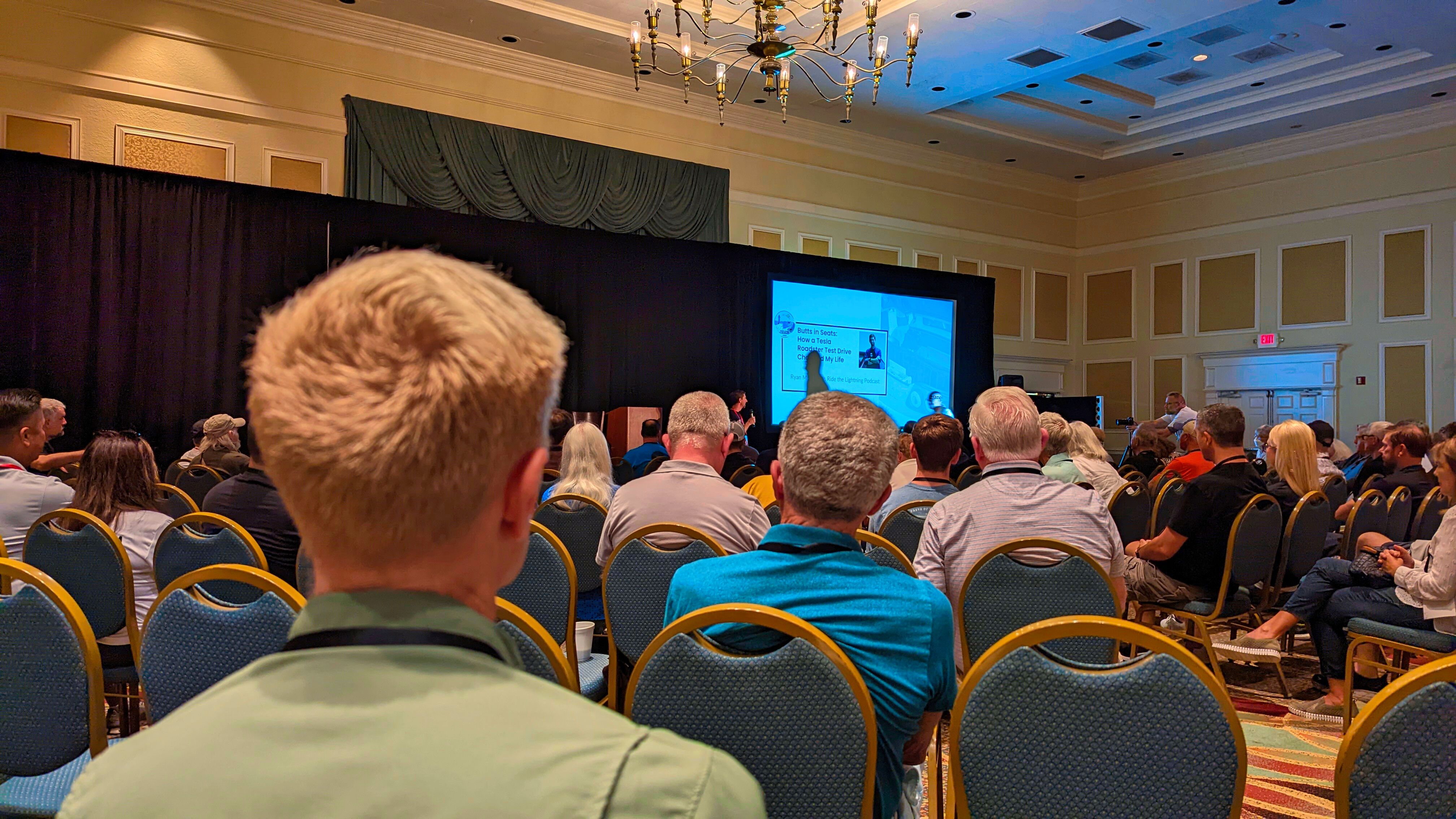
I hope you don’t have this seat at your next meeting

Featured

Who made this decision?

#AudienceAdvocate Ray Franklin knows this event was approved while STANDING in the back of the room with no audience. “Looks good to me.”

Unless EVERY meeting is dedicated to guaranteeing EVERY audience member has the same experience this will continue to happen.

When selling seats at an arena with a post blocking the view of the stage, the ticket will be lower in price and have RESTRICTED VIEW printed on the ticket.

This situation begins with site selection. Always look for high ceilings that will allow the ideal angle for hanging lights (the best is 45 degrees above the stage) and high screens. CHECK

The next step is the AV contractor responding to a client requesting a large video/graphic screen. CHECK

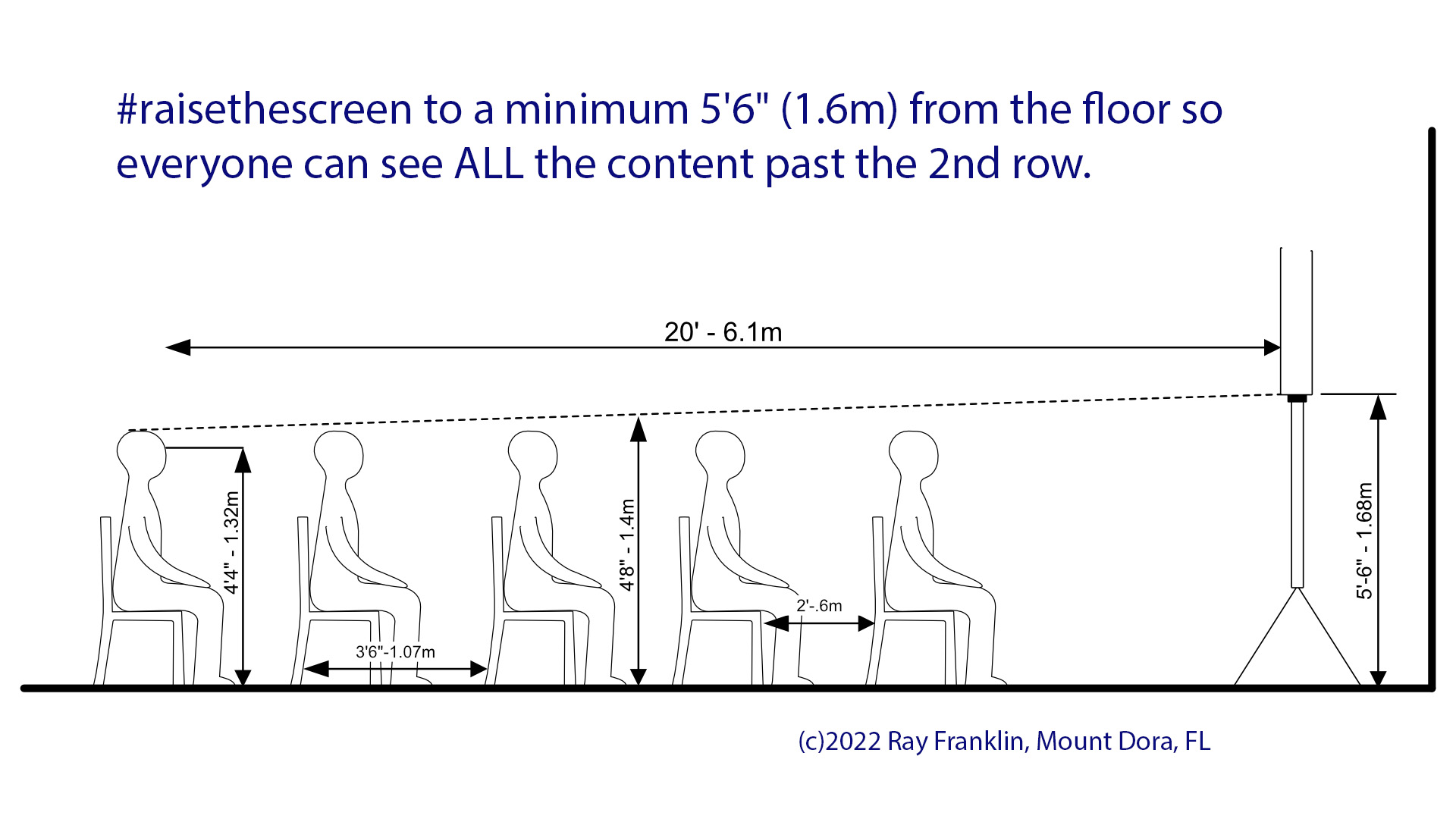
That is where this fell apart. The AV contractor had the option to tell the client, “In order for the screen to be at least 5’6″ off the floor, there may be an expense for different folding screen hardware and drapery.” OR the AV contractor didn’t bring it up. FAIL

The client likely depended on the AV contractor to bring up any issue that would affect EVERY audience member. Most clients are not aware of the laws of physics. FAIL

Share this diagram with anyone planning projection screens.

Basic physics

Ray Franklin, the #AudienceAdvocate and Presentation Coach consults with corporate, education, and venues on all aspects of event production.

Please re-post this to others who fall prey to poor event presentation planning.

Comments are welcome.

Improve every audience experience – including the worst seat in the house.

Featured

EXECUTIVE OVERVIEW

AV101 2021 Workshop Tour

What follows here is the outline of a meeting industry seminar aimed at improving the audience experience, every time.

Everyone has attended a meeting in a boardroom, classroom, ballroom, theater or arena, where the audience experience is less than positive.

What you are about to discover are notes from the Audience Advocate, Ray Franklin. He developed this presentation as a result of over 40 years with challenging venues, clients and vendors.

This is an attempt to enlighten all three groups, including Meeting Professionals International (MPI) membership and other professional meeting associations.

The workshop outline:

Segment 1 (30 minutes) – Introduction of the “audience expectation” for an excellent experience. The best practices can benefit each stakeholder in a meeting encounter.

  • Audience – Once content is created, the audience wants to be comfortable, be able to see and hear content with minimal distraction. Nobody wants “restricted view” seats to a baseball game, concert or stage play. Same for effective meetings.
  • Client – XYZ Corporation is investing money and expect a return on their investment (ROI). Whether the audience is employees, customers or association members, they deserve the full value of the investment.
    • Today’s audiences are avid media consumers with event demands above the casual gathering. They want to be engaged, even distracted from their cell phones. Providing an excellent environment for the event will go a long way to engaging your audience.
  • Venue – Hotels sell rooms, Food & Beverage (F&B). The meeting rooms are often free of charge if there is a large enough F&B contract. Of course, the venue wants to maximize use of their available space, they should be aware of some physical issues impact the audience experience, then the client’s choice to return for another meeting. Free civic or university events should also follow these best practices.
  • AV Vendor – In-house AV firms (or venue AV staff) have the benefit of “exclusive” provider of sound, lighting, AV, video and often electricity for meetings. Their ultimate client is the GM of the venue. The better AV provider is a consultative partner with the venue to support the client event. Too often the in-house AV provider has staff that is not aware of the “audience experience.” The result is screens, sound systems, etc. are not optimized for the client, room or event.

Segment 2 (35 minutes) – Demonstration of the issues and solutions that should be adopted as “Best Practices When Using AV in Any Meeting – Regardless of Size.” We will give an equipment list to the in-house AV provider to demonstrate each of the following categories.

Segment 3 (30 minutes) – Q&A including discussion of the client expectations and real-world situations that vary between venues.

Seminar Option – audience seating

Where appropriate, add a 15-minute review of audience seating for banquet, classroom or theater seating. Many venues need to understand the audience comfort, and safety when setting a room. For example – most venue setup staff don’t know the local Fire Marshal rules for seating, egress, etc. They often don’t understand “theater seating” requires the more complicated setting of chairs in staggered rows, not one behind the other.

Screen size

  • Screens should be large enough so the entire audience can read all text on the screen.
    • Ceiling height and room depth determine screen size
  • Screen(s) must be at least 5’6″ above the floor for the entire audience to see the entire screen – ALWAYS SIT in the last row to determine visibility and “sight lines.”
    • In breakout rooms consider the low ceilings may require electronic displays (LED SCREENS) on a minimum of 56” tall stands in strategic places in the room.
    • An 8’ ceiling is too low for most projection screens. Adding the required 5’6” screen base and a 5’ high screen – do the math.
    • AV projection is never figured into the venue “seating capacity” charts regardless of the intended use of the room.
    • Consider using “short throw” projectors in breakout rooms. The projector can be as little as 8 from the wall to a 100” screen.
  • The furthest viewer must be no further than 8 times the height of the screen.
    • Example: If the room is 40′ long, the screen must be 5′ high for everything to be legible.
    • Of course, that is not possible given the 5’6” needed from the floor to the bottom of the screen.
    • 5’6” plus 5’ high screen requires a clearance of 10’6” ceiling, given the 40’ long room.
  • Front projection screens always battle with ambient light for visibility.
  • Rear screen is often preferable – space permitting. Consider placing the screen(s) in one, or two corner(s) of the room angled 45 degreed so all can see.
  • True ceiling height for an AV event is the “lowest point” in the ceiling considering soffits, air wall tracks and All these contribute to the restricted height of AV screens.
    • All “AV friendly” published hotel ceiling heights are a lie.
    • The best hotel seating capacity chart is #HonestHotelCapacityChart
  • Use a fabric “dress kit” to remove ambient light behind the screen.
    • A dress kit consists of 3 parts
      • Skirt – often too short to hang to the floor if the screen is properly elevated to a minimum of 5’6” from the floor.
        • The simple solution is to place a banquet or classroom table dressed in a black skirt and table cloth to hide the gap from the bottom of the skirt to the floor. It won’t be seen by anyone other than the 1st
      • Wings – Drapes either side of the screen
      • Valence – single drape (typically 1’ height) above the screen
        • AVOID valence if you need to raise the screen in a low ceiling.
        • Don’t waste empty space above the screen if the room allows. Always raise the screen.
      • Always turn off ALL lights behind the rear screen and those casting direct light from the front. This will require communicating with the venue engineering, or AV staff to unscrew lamps (typical method) or switch off banks of lights.
        • Use a DLP or laser projector – NOT LCD. Colors are better and brighter. Ensure ample light output to fill the screen.
        • When using drapery to mask the screen or provide a backdrop to the stage, don’t use translucent “banjo cloth” exhibit drape. You will be distracted by movement behind the drape, exit lights or glow from the projector light(s).
      • Specify 16:9 aspect ratio – typical for all PowerPoint graphics and video

#Lecternnotapodium

  • Lecterns stand on platforms or podiums.
    • Olympic winners stand on a podium for their medals.
    • Speakers use a lectern to hold notes.
    • Why the confusion?
  • Lectern must have a reading light that does not glare in presenter’s face
  • Reading light and microphone must allow for an open 3-ring binder to sit comfortably on the deck of the lectern without fighting for space with a mic stand or reading light base.
  • Avoid attaching the mic to the lectern without a significant shock mount. Shock mounts are seldom available from in-house inventory
    • Use, instead, a floor standing “baby boom” mic stand to avoid noise from the lectern.
    • The floor-standing boom will hold any mic away from the noise and interference with the lectern.
  • Consider presenters who will not use the lectern. Provide lighting to the rest of the stage, or floor area where you expect presenters to roam.
    • These presenters will either use a lavalier or handheld wireless
    • Some presenters prefer headset mics that will plug into the wireless mic transmitter
  • Many are moving away from traditional lecterns due to the “barrier” they present to the audience.
    • A banquet “high-top” table with a simple cover over the top only provide a clean space for notes, water glass and props
    • The high-top is ideal when two people need to share the spotlight.
    • Plexiglas lecterns are a dust and scratch magnet. With stage lights on, all these imperfections are exaggerated. Avoid except for the “Awards Banquet”
  • Avoid white background and high contrast letters on any shiny surface for either a lectern sign and/or a banner behind the presenter.
    • Always specify “flat” material and art. You will regret not doing so once the stage lights go on. Reflections are a distraction.
    • Take the time to “hang out” any folded or rolled backdrops
    • Specify top and bottom pockets for drapery pipe to ensure backdrops hang without wrinkles

Stage, platform or riser

  • Always prefer to place the stage on the “long wall” of any room.
    • This ensures the audience is closer to the presenters.
  • Prefer the audience enter from the rear of the room. Less chance to distract presenters, video screens or audience every time the doors open.
    • I prefer a “light lock,” or curtain if the open door to the foyer is bright. Set the curtain inside the meeting room about 10 feet from the entrance.
    • I also prefer venues where the banquet servers don’t expose the inside of the otherwise nicely decorated banquet room with open doors and fluorescent light from the service corridor.
  • Stage height should be sufficient for the top of the lectern to be seen by the last person in the audience over the heads of the person in the row or seat in front of you.
  • Any stage higher than 8″ must have at least one step unit WITH handrails
    • Any step unit must be attached to the stage for safety
    • Consider the placement of the step units from the side or front of the stage. If you anticipate photos of people on stage, you will want the step units on the side of the stage.
    • Consider two sets of steps. Ease of access for the audience and presenters.
  • Consider the number of people who might be on the stage at any one time. A group of award winners should not have to crowd behind the lectern to be seen and photographed. Allow a minimum of 2.5 feet for each person on stage.
    • Allow a 5 ft. wide “no-go” zone behind the lectern for any award presentations.
  • Venues often don’t take care of their portable risers. They are thrown around by set-up staff and not maintained
    • Insist on the venue’s best-looking risers each time
    • “Creaky” risers are a distraction to the presenter and likely emit sound to the microphones
  • Don’t set lectern on the gap between two risers.
    • They are often not even and will cause lectern to rock back and forth, creating noise
  • If risers are squeaking because they don’t lock together, ONLY use 6” (or larger) C-clamps.
    • Wire and gaffer tape will not work, don’t waste your time.
  • If using stage lights, always use 1” WHITE paper tape to mark stage edges and step access.
    • This to avoid talent from losing the edge in the bright lights and falling off the stage.
  • Clean, proper height “stage skirts” must clip or Velcro on. If too long, take care to fold nicely under the stage to avoid being a trip hazard.

Lighting – don’t leave the presenter(s) in the dark

  • Light the stage or at least the person(s) who will be standing at the lectern.
    • Consider anyone joining the presenter on stage. They need to be lit as well.
  • All stage lighting should be set at a 45° angle left AND right of the stage at a height as high as possible. Lighting from one side only creates a shadow on one side of the presenters.
    • Reject any stage lighting from the rear of the room – directly in the eyes of the presenter(s).
  • Use dimmers to control the intensity. Simple manual dimmers at the base of each light tree will suffice
    • The intent is to highlight the presenter’s expressions, not a stage play
    • Use no-color pink, or surprise pink (lavender) gel in frame
    • For IMAG ½ CTB gell
  • Light the background drape or wall to give separation from the presenter.
    • The background should be no more than 40% of the intensity of the light on the presenter.
    • Using any video (FaceBook Live, etc.) provide a head and shoulder “backlight” to separate the talent from the background.
  • Take care placing talent under bright overhead lights. Long shadows result on talent faces.
  • Allow at least 6 ft. behind the lectern to the backdrop.
  • If using video playback insist on house light remote control from a convenient position so you can dim the house lights for a better video viewing experience
    • Older venues only have house light controls on salon walls. This is not ideal.
    • Prefer remote house light control (not InfraRed) remote available at a convenient place

Audio support

  • The goal is for evenly distributed sound throughout the audience. That means, don’t expect to blow out the ears of the people in the front of the room so those in the back can hear.
  • Sound is like light from a flashlight. If you are not in the DIRECT path of the speaker, you are likely to hear a muffled
    • The muffled sound will result in a loss of speech recognition. The consonants (t,b,d, etc) all sound the same unless seated in the direct sound pattern.
  • When using amplified speakers, ensure they are raised above audience heads by at least 1 foot.
    • ALWAYS place the speakers between the open mics and the audience.
    • Placing speakers even with the stage, or behind the open mics will deteriorate the sound and promote audio feedback
    • Any time more than 3 mics are in use, insist on an audio technician to set-up and monitor audio during the event.
    • Only open mics in use. Fade others down (to 20%) to limit feedback
  • With more than 3 mics insist on a third-octave equalizer to reduce sounds only in the narrow feedback frequencies
    • Do not try to eliminate feedback using the broadband knobs on the mic mixer.
    • Use a “real-time analyzer” app on any cell phone to identify feedback frequencies.
  • Insist the audio technician is directly in the sound pattern so the sound to the audience is easy to monitor
  • Use overhead speakers for microphones if you are not able to use enough powered, standing speakers to provide “even sound coverage” to the entire
    • Avoid placing the lectern directly under an overhead speaker unless that speaker can be muted.
    • Outside AV/production suppliers often battle with venues who pretend they are protecting their overhead system from damage from outside vendors. That can be easily resolved with a house mixer limiting levels to the house sound system.
    • In most cases refusing outside vendors from using house overhead speakers is to force the use of in-house AV.
  • Some venues allow the use of overhead speakers with expensive “patch fees.” Be sure to negotiate to avoid “per room, per day” fees.
    • In-house AV companies often say the house system is terrible, justifying the need for additional billing for a separate sound system.
  • Do not use overhead speakers for video playback, music, and any non-speech sounds. Provide separate speakers from the front of the audience to provide playback sound.
  • Wireless mics are often overused. Without careful coordination, they are often misused and subject to interference and battery issues.
    • Fresh batteries on all wireless mics every 4 hours.
    • Always provide a wired mic to the stage in case of wireless mic failure, because they often do.

Video projection support

  • Most meetings will have PowerPoint graphics.
  • When possible, have redundant (identical) laptops with the same version of the PowerPoint software and ALL necessary special fonts
    • One computer will feed the screen, the other will be “on-line” backup
    • If running video within PowerPoint be sure to test the transitions necessary to switch to and back from the video
  • Prefer a wireless remote control that is NOT Bluetooth or Infra-Red. They are both prone to miscues. The best remote is D’San Perfect Cue. It is FM, reliable and will advance prime and backup laptops.
  • Ensure the laptops are in the “presentation mode”
    • Will avoid going to sleep if on battery
    • Will mute any interference with notifications and popups
    • Limit the HDMI cable run to under 10 feet if possible. Longer runs should be avoided.
      • Longer video feeds should use fiber optic cable between laptop(s) or switcher, and the projector(s).
    • If using multiple video sources, consider simple HDMI switcher – not a ScreenPro or similar that requires trained technician
    • When using PowerPoint, provide a “confidence monitor” on a stand on the floor about 10 feet from the stage edge, with the top of the screen at least 4 feet from the ground.
      • This will be a direct feed of what the audience sees, allowing the presenter to keep eye contact.
    • Never allow chair or table dollies rollover cable
      • Use cable ramps in doorways
      • Route cables over door frame

©2019 Ray Franklin

#AudienceAdvocate

production.director@gmail.com

702-879-8177